

Nearly 60% of desk setups now juggle two or more devices, so you’re probably dealing with more cables than you need. If you want cleaner switching between PCs, monitors, and peripherals, the right HDMI KVM can change how your workspace works. From 4K60 single-screen options to dual-monitor models and budget picks, a few standouts handle the clutter better than the rest—and one feature may matter more than you think.
| USB3.0 2-Port HDMI KVM Switch 4K@60Hz |
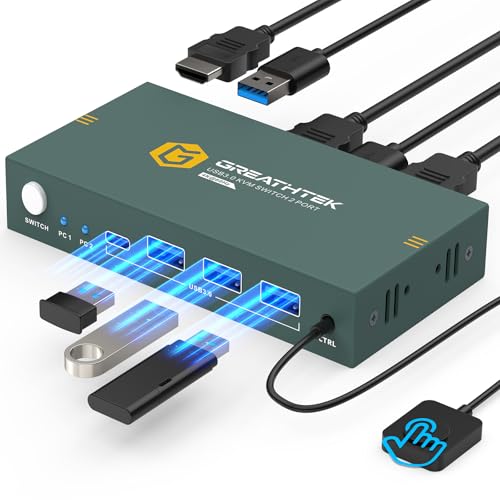
| Best Budget Pick | Port Count: 2-port | Monitor Support: 1 monitor | Max Resolution: 4K@60Hz | VIEW LATEST PRICE | Read Our Analysis |
| UGREEN HDMI KVM Switch for 2 Computers 2 Monitors |

| Best for Dual Monitors | Port Count: 2 computers | Monitor Support: 2 monitors | Max Resolution: 4K@60Hz | VIEW LATEST PRICE | Read Our Analysis |
| Unitek HDMI KVM Switch for 2 Monitors 2 PCs |

| Best for Desktops | Port Count: 2 PCs | Monitor Support: 2 monitors | Max Resolution: 4K@60Hz | VIEW LATEST PRICE | Read Our Analysis |
| StarTech.com 2 Port USB HDMI KVM Switch (SV231HDMIUA) |

| Best Premium Pick | Port Count: 2-port | Monitor Support: 1 monitor | Max Resolution: 1920×1200 | VIEW LATEST PRICE | Read Our Analysis |
| TCNEWCL 4-Port HDMI KVM Switch with Cables |

| Best for 4 Computers | Port Count: 4-port | Monitor Support: 1 monitor | Max Resolution: 4K@30Hz | VIEW LATEST PRICE | Read Our Analysis |
| Hearvo HDMI KVM Switch for 2 Monitors 2 Computers |

| Best for Power Users | Port Count: 2 computers | Monitor Support: 2 monitors | Max Resolution: 4K@60Hz | VIEW LATEST PRICE | Read Our Analysis |
More Details on Our Top Picks
USB3.0 2-Port HDMI KVM Switch 4K@60Hz
If you want to share one 4K monitor between two computers without giving up speed or convenience, the GREATHTEK USB3.0 2-Port HDMI KVM Switch is a strong pick. You get 4K at 60Hz, HDMI 2.0, and HDCP 2.2 for crisp video, plus adaptive EDID for steady output. Its three USB 3.0 ports let you run a keyboard, mouse, printer, or drive from both systems. You can switch with the wired remote or front button, and setup’s simple: plug in the included USB cables, add three HDMI cables, and you’re ready.
- Port Count:2-port
- Monitor Support:1 monitor
- Max Resolution:4K@60Hz
- USB Ports:3 USB 3.0
- Switching Method:Remote/button
- Power Type:5V, no adapter
- Additional Feature:Adaptive EDID support
- Additional Feature:Lifetime warranty
- Additional Feature:Includes remote cable
UGREEN HDMI KVM Switch for 2 Computers 2 Monitors
UGREEN’s HDMI KVM Switch for 2 Computers 2 Monitors is a smart pick if you need to control two PCs from one desk while driving two displays in either extend or mirror mode. You get plug-and-play setup, 4K@60Hz support, HDR, and four USB 3.0 ports for your keyboard, mouse, storage, and printer. Use the front button or desktop controller to switch cleanly. Each PC needs two HDMI cables and one USB-A cable, and your monitors must support dual-screen output. It works with Windows, macOS, Linux, and major consoles, too.
- Port Count:2 computers
- Monitor Support:2 monitors
- Max Resolution:4K@60Hz
- USB Ports:4 USB 3.0
- Switching Method:Button/controller
- Power Type:Power adapter
- Additional Feature:Extend and mirror modes
- Additional Feature:HDR10+ support
- Additional Feature:Desktop controller included
Unitek HDMI KVM Switch for 2 Monitors 2 PCs
The Unitek HDMI KVM Switch for 2 Monitors and 2 PCs is a strong fit for desktop users who need dual-monitor control across two HDMI-only hosts, especially if you want 4K@60Hz output, USB peripheral sharing, and simple one-button or remote-controller switching. You can use it with PCs, PS4, and other HDMI sources, while Windows, macOS, and Linux stay supported. It handles HDMI 2.0, HDCP, HDR, and mirror or extend modes. Four USB-A ports, mic, and headset jacks keep your peripherals connected. Use the included USB A-to-B cables, and plug in the 5V adapter for power-hungry devices.
- Port Count:2 PCs
- Monitor Support:2 monitors
- Max Resolution:4K@60Hz
- USB Ports:4 USB-A
- Switching Method:Button/controller
- Power Type:DC 5V/2A adapter
- Additional Feature:Mic and headset ports
- Additional Feature:Desktop controller included
- Additional Feature:Desktop-host only design
StarTech.com 2 Port USB HDMI KVM Switch (SV231HDMIUA)
StarTech.com’s 2 Port USB HDMI KVM Switch (SV231HDMIUA) is a solid pick when you want to control two Windows or Mac computers from one HDMI display, keyboard, mouse, and even shared audio gear. You can switch audio and mic channels, or run them separately from the computers and USB hub. Its integrated 2-port USB 2.0 hub lets you share extra peripherals, while front-panel buttons and hotkeys keep control simple. It supports up to 1920 x 1200, uses genuine HDMI signaling, and includes a 3-year warranty. Its steel build feels sturdy and compact.
- Port Count:2-port
- Monitor Support:1 monitor
- Max Resolution:1920×1200
- USB Ports:2 USB 2.0
- Switching Method:Buttons/hotkeys
- Power Type:21V, 1.5A adapter
- Additional Feature:Audio and mic switching
- Additional Feature:2-port USB 2.0 hub
- Additional Feature:TAA compliant
TCNEWCL 4-Port HDMI KVM Switch with Cables
TCNEWCL’s HDS-4P 4-Port HDMI KVM Switch with Cables is a strong fit if you need a simple, all-in-one way to run up to four computers from one HDMI monitor and three shared USB peripherals. You get four 2-in-1 HDMI/USB cables and a wired desktop controller, so setup stays easy and driver-free. It supports up to 4K x 2K at 30Hz, plus 1080p and lower resolutions, and works with Windows, macOS, and Linux. Use the front button or controller to switch, while LED lights show the active PC clearly.
- Port Count:4-port
- Monitor Support:1 monitor
- Max Resolution:4K@30Hz
- USB Ports:3 USB devices
- Switching Method:Button/controller
- Power Type:5V, 1A
- Additional Feature:Four KVM cables included
- Additional Feature:LED input indicators
- Additional Feature:Ultra-wide display support
Hearvo HDMI KVM Switch for 2 Monitors 2 Computers
If you need to run two monitors across two computers while sharing a keyboard, mouse, printer, and other USB devices, the Hearvo HDMI KVM Switch is a strong fit. You get dual HDMI switching, three USB 3.0 ports, and support for Windows, Mac, Linux, PS4, and other consoles. It handles 4K at 60Hz, uses Adaptive EDID, and supports HDCP 2.2 for protected content. You can switch with the front button or wired remote. It’s plug-and-play, includes cables, and needs HDMI 2.0 cables to finish setup.
- Port Count:2 computers
- Monitor Support:2 monitors
- Max Resolution:4K@60Hz
- USB Ports:3 USB 3.0
- Switching Method:Button/remote
- Power Type:5V, no adapter
- Additional Feature:Adaptive EDID support
- Additional Feature:HDCP 2.2 compliant
- Additional Feature:Lifetime warranty
Factors to Consider When Choosing HDMI KVM Switches
When you choose an HDMI KVM switch, check the resolution and refresh rate first so it matches your displays and workloads. Then look at the port count and layout, switching methods, USB peripheral support, and overall compatibility and power needs. If you match these factors to your setup, you’ll get smoother control and fewer headaches.
Resolution And Refresh Rate
Resolution and refresh rate can make or break your HDMI KVM setup, so you’ll want a switch that matches your monitor’s full capability, such as 3840×2160 at 60Hz for true 4K@60Hz performance. If the KVM falls short, it may downscale the image or cap refresh, which hurts smoothness and clarity. Check that the switch and its HDMI version, like HDMI 2.0 or higher, can handle the bandwidth for your target mode, especially if you want 120Hz, 144Hz, or HDR. You should also confirm it keeps your preferred chroma and color depth, so you don’t lose 4:4:4 detail or introduce banding. If you run dual displays, make sure it supports both at full quality. EDID and HDCP support should stay stable, too.
Port Count And Layout
Once you’ve confirmed the video performance you need, the next thing to sort out is how many ports the HDMI KVM actually offers and how they’re arranged. Match the port count to your current computers and monitors, then leave some headroom if you expect to add another system later. Check whether each host needs separate HDMI and USB connections or a combined cable bundle, since that changes how much wiring you’ll manage. If you run multiple displays, make sure the switch supports the right number of outputs per computer and that those ports sit where your cables can reach. Also look at front- versus rear-panel placement, plus any wired controller, and confirm the downstream USB ports fit the devices you’ll plug in.
Switching Methods
Switching methods matter as much as port count, because you’ll use them every time you change machines. You should decide whether front-panel buttons fit your workflow or whether you need a wired desktop controller for easier access from your seat. If you like keyboard-only control, confirm that the KVM supports hotkeys, since some models don’t. Also check for a remote cable or 3.5mm-style desktop trigger if you want the switch placed out of sight. Pay attention to how fast it changes inputs: some units switch instantly, while others briefly reinitialize video or audio and can interrupt work. If you need automation, look for programmable control options such as USB commands, API access, or remote signaling instead of manual-only switching.
USB Peripheral Support
USB peripheral support is just as important as the way a KVM changes inputs, because the right ports determine what you can actually connect and how well those devices work. You should check how many downstream USB-A or USB-C ports you get, and whether they run at USB 3.0/3.1 speeds for drives or only USB 2.0 for keyboards and mice. Make sure each computer connects through a proper USB-B or USB-C upstream link, and that the switch carries USB 3.0 data end to end. Look for hot-plugging and automatic recognition so storage devices and scanners don’t need replugging. You should also verify USB power delivery and whether you can share the hub or switch devices individually, with full support for multimedia keys and specialized controllers.
Compatibility And Power
When you choose an HDMI KVM switch, make sure it works with your OS and source devices first, whether that means Windows, macOS, Linux, or even a game console. Check that each source has the right HDMI output and the USB ports you need for keyboard, mouse, and shared peripherals. If you’ll use external drives, scanners, or printers, look for a model with DC power or an included adapter, because bus power alone may not be enough. Match the USB standard to your workload: USB 2.0 is fine for basic control, but USB 3.0 keeps fast storage moving. Also confirm EDID emulation and HDCP 2.2 support for stable, protected video. Finally, verify cable lengths, USB-C adapters, and hotplug behavior.
Frequently Asked Questions
Does the KVM Switch Support Wireless Keyboards and Mice?
Yes. Wireless keyboards and mice work when their USB receiver is connected to the KVM. Check the KVM’s compatibility list because some models do not support every wireless set.
Can I Use Audio Devices Through the HDMI KVM Switch?
Yes, if your HDMI KVM switch includes audio pass-through, it will carry audio to connected speakers or headphones. Verify the switch’s specifications to confirm support for headphones, external speakers and for microphone input if you need voice capture.
Will It Work With Mac and Linux Computers?
Yes. If your Mac or Linux computer has HDMI and USB ports, the device should connect and function. Before buying, confirm model compatibility with your operating system, test or verify how hotkeys are handled, and check keyboard mapping behavior because implementations vary between models.
Do I Need Extra Power for All KVM Switch Models?
Not always. Some KVM switches draw power from the connected computers while others require an external power adapter to ensure stable video and USB performance. Check the specifications for the specific model before purchasing.
How Do I Switch Between Computers Quickly?
Press the KVM button, use its keyboard hotkey, or click the remote selector to change machines. The switch is instant, so keep the shortcut accessible and label each computer with its function or name.
Final Thoughts
Choosing the right HDMI KVM switch is like clearing a tangled path in a crowded room—you suddenly move with ease. Whether you need crisp single-display power, flexible dual-monitor setups, or a budget-friendly hub for multiple devices, there’s a fit for your workflow. The right switch doesn’t just save desk space; it gives you back time, focus, and calm. Pick the one that matches your setup, and let your tech work together, not against you.
