

You probably don’t know that even a basic SATA SSD can make your PC feel dramatically newer without changing anything else. If you’re tired of slow boots, laggy apps, and long file transfers, the right drive can fix a lot more than you’d expect. In the next few picks, you’ll see which internal SSDs give you the best mix of speed, value, and reliability, and one of them may be the upgrade your system’s been missing.



More Details on Our Top Picks
SanDisk SSD PLUS 1TB Internal SSD (SDSSDA-1T00-G26)
The SanDisk SSD PLUS 1TB Internal SSD is a strong pick if you want a simple, reliable upgrade for a PC laptop or desktop. You get 1TB of SATA III storage in a slim 2.5-inch, 7mm form factor, so it fits many systems easily. It can reach up to 535MB/s read and 450MB/s write speeds, which helps your PC start faster, launch apps quicker, and move files with less waiting. You also get solid shock resistance, quiet operation, and a 3-year limited warranty.
- Capacity:1TB
- Form Factor:2.5-inch / 7mm
- Interface:SATA III 6 Gb/s
- Read Speed:Up to 535 MB/s
- Write Speed:Up to 450 MB/s
- Warranty:3-year limited
- Additional Feature:Shock resistant 1500G
- Additional Feature:Quiet reliable performance
- Additional Feature:Dashboard status monitoring
Crucial MX500 1TB SATA Internal SSD (CT1000MX500SSD1)
Crucial’s MX500 1TB SATA internal SSD is a strong pick if you want a reliable upgrade for a laptop or desktop that still uses a 2.5-inch SATA drive bay. You’ll get up to 560 MB/s read and 510 MB/s write speeds, plus random performance reaching 95K/90K IOPS, so apps and files open quickly. Micron 3D NAND boosts efficiency, while integrated power loss immunity helps protect saved work. It also includes AES 256-bit hardware encryption for security. With Crucial’s 5-year limited warranty, you can upgrade with confidence.
- Capacity:1TB
- Form Factor:2.5-inch
- Interface:SATA
- Read Speed:Up to 560 MB/s
- Write Speed:Up to 510 MB/s
- Warranty:5-year limited
- Additional Feature:Power loss immunity
- Additional Feature:AES 256-bit encryption
- Additional Feature:Micron 3D NAND
Crucial BX500 240GB 2.5-Inch Internal SSD (CT240BX500SSD1)
Need a simple, reliable speed upgrade for an aging PC? The Vital BX500 240GB 2.5-Inch Internal SSD gives you a fast, affordable boost with 3D NAND SATA performance. You’ll boot faster, open files quicker, and enjoy a more responsive system every day. It reaches up to 540MB/s, which is up to 300% faster than a typical hard drive. You’ll also use less power, since it’s 45x more energy efficient, which can help battery life. Backed by Micron’s 3D NAND experience and a 3-year limited warranty, it’s a smart upgrade.
- Capacity:240GB
- Form Factor:2.5-inch
- Interface:SATA
- Read Speed:Up to 540 MB/s
- Write Speed:Not listed
- Warranty:3-year limited
- Additional Feature:45x more energy-efficient
- Additional Feature:3D NAND technology
- Additional Feature:300% faster hard-drive
Kingston 240GB A400 SATA 2.5″ Internal SSD
If you want a simple, affordable hard drive replacement that makes an older desktop or laptop feel much snappier, the Kingston 240GB A400 SATA 2.5″ Internal SSD is a strong fit. You get up to 500MB/s read and 450MB/s write speeds, so your PC boots faster, apps open quickly, and files move without fuss. Its flash memory has no moving parts, which helps it run cooler, quieter, and more reliably than a mechanical drive. The 2.5-inch SATA design works well for everyday upgrades, and 240GB gives you room for core apps, documents, photos, and videos.
- Capacity:240GB
- Form Factor:2.5-inch
- Interface:SATA 3.0 Gb/s
- Read Speed:Up to 500 MB/s
- Write Speed:Up to 450 MB/s
- Warranty:3-year limited
- Additional Feature:Stainless steel enclosure
- Additional Feature:Cooler quieter operation
- Additional Feature:No moving parts
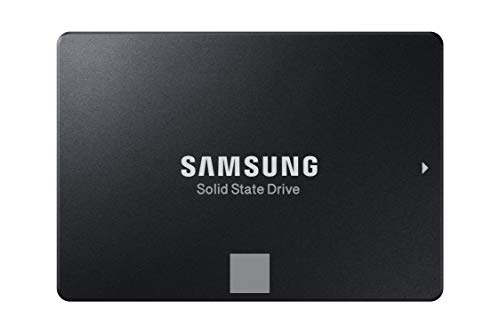
Samsung SSD 860 EVO 2TB 2.5 Inch SATA III Internal SSD (MZ-76E2T0B/AM)
Samsung’s SSD 860 EVO 2TB is a strong pick if you want a reliable internal upgrade for a Mac or Windows PC that still uses a 2.5-inch SATA drive bay. You get 2TB of space in a slim 7mm drive with SATA III speeds, reaching up to 550 MB/s read and 520 MB/s write. Samsung’s V-NAND, MJX controller, TurboWrite, and 2GB DDR4 cache help keep performance smooth. It also adds AES 256-bit encryption, strong endurance, and a 5-year warranty, so you can trust it for gaming, business, or daily use.
- Capacity:2TB
- Form Factor:2.5-inch / 7mm
- Interface:SATA III / SATA 6.0 Gb/s
- Read Speed:Up to 550 MB/s
- Write Speed:Up to 520 MB/s
- Warranty:5-year limited
- Additional Feature:Samsung V-NAND technology
- Additional Feature:TurboWrite technology
- Additional Feature:TCG Opal compliance
KEXIN 256GB SATA III 2.5-inch Internal SSD
The KEXIN 256GB SATA III 2.5-inch Internal SSD is a solid pick if you want a simple, affordable upgrade for a laptop, desktop, or even a gaming console. You get 3D NAND flash, SATA III speeds up to 500 MB/s, and noticeably quicker boot times and file access. It runs silently, uses less power, and gives off less heat, so it fits everyday use well. Its standard 2.5-inch black design makes installation easy, and the package includes a quick start guide and screwdriver kit. KEXIN also backs you with 24-hour support for added peace of mind.
- Capacity:256GB
- Form Factor:2.5-inch
- Interface:SATA III / SATA 3.0
- Read Speed:Up to 500 MB/s
- Write Speed:Not listed
- Warranty:Not listed
- Additional Feature:24-hour support
- Additional Feature:Screwdriver kit included
- Additional Feature:Reduced heat generation
Factors to Consider When Choosing an Internal SSD
When you choose an internal SSD, start with storage capacity, interface speed, and the form factor that fits your device. You’ll also want to compare read and write performance so your system feels fast in real use. Don’t forget the durability rating, since it shows how well the drive can handle long-term wear.
Storage Capacity
Storage capacity determines how much your internal SSD can hold, from the operating system and apps to games, photos, videos, and documents, so bigger drives suit larger libraries and heavier workloads. You’ll usually see capacities from about 240 GB to 2 TB or more, so you can match the drive to your needs. A 240 GB model works for a basic upgrade or light use, but it can fill fast when you install several large programs or store media. A 1 TB SSD often gives you the best balance, leaving space for Windows, your favorite apps, and plenty of personal files. Remember, you won’t get every advertised gigabyte because formatting and drive management reserve a little space.
Interface Speed
Interface speed matters because it determines how fast your SSD can actually perform in your system, so you’ll want a drive that matches your motherboard or laptop’s supported connection. If your machine supports SATA III, you can take advantage of up to 6 Gb/s, while SATA II tops out at 3 Gb/s. That difference affects real-world performance, so a drive rated for 500–560 MB/s won’t hit those numbers on a slower port. SATA SSDs usually deliver sequential read speeds around 500–560 MB/s and write speeds around 450–520 MB/s. Choose a faster interface when you move large files or run sustained workloads, since the connection can become the bottleneck. If you’re replacing an old hard drive, a faster SATA link can noticeably improve boot times, loading, and transfers.
Form Factor
Form factor is the SSD’s physical footprint, and it has to match your device’s drive bay and mounting hardware to fit properly. You’ll often see 2.5-inch drives, which fit many laptops and desktops. These models usually use a 7 mm-thick enclosure, so you should check clearance in slim notebooks and standard SATA mounts before you buy. If your system still uses an older 2.5-inch hard drive, a 2.5-inch SATA SSD can be a straightforward replacement. Pick the right size and shape, and you’ll avoid installation problems, wasted returns, and compatibility headaches. In short, match the SSD to your device’s internal layout, available space, and mounting style so the drive slides in cleanly and works the way you expect.
Read Write Performance
Once you’ve matched the SSD’s size and mounting style, the next thing to look at is speed. You’ll want to check sequential read performance first, since it shows how fast your drive opens or moves big files. Many SATA SSDs land between 500 MB/s and 560 MB/s. Then look at sequential write speed, which affects how quickly you save large projects or install apps; good drives usually reach 450 MB/s to 520 MB/s. Don’t ignore random read and write performance, either. It shapes everyday responsiveness when you boot up, launch programs, and juggle lots of small files. Some drives hit around 95K read IOPS and 90K write IOPS. Remember, your actual speed can vary based on capacity, hardware, and operating system.
Durability Rating
Durability matters just as much as speed when you’re choosing an internal SSD. You should check shock resistance first, because ratings up to 1500G tell you how well the drive can survive sudden impact. Then look at vibration resistance, often around 5 gRMS across wide frequency ranges, since that shows how well it handles constant movement and mechanical stress. You’ll also want a solid operating temperature range, commonly 0°C to 70°C, so the SSD can keep working in your system’s heat. Endurance specs matter too: higher TBW and strong MTBF figures suggest longer, steadier performance. Finally, a 3-year or 5-year warranty can signal that the manufacturer trusts the drive’s lifespan and reliability.
Compatibility Check
After you’ve weighed durability, the next step is making sure the SSD will actually fit and work in your system. You’ll want to match the drive’s form factor to your bay, since many internal SSDs use a 2.5-inch, 7 mm design. Next, check the interface your machine supports, such as SATA III 6 Gb/s, because the SSD needs a compatible port. You should also confirm the drive is meant for your device type, whether that’s a desktop, laptop, or both. Then verify OS and platform compatibility for Windows, macOS, Linux, or your PC setup. Finally, review installation needs: thickness, connector alignment, and whether your system has enough physical space to accept the drive cleanly.
Warranty Coverage
Warranty coverage is worth checking closely, because a longer limited warranty often signals greater manufacturer confidence, with many internal SSDs offering 3 to 5 years of coverage. You should read the terms carefully to see whether the warranty covers only defects in materials and workmanship or also includes replacement support and service conditions. Some drives also tie coverage to endurance limits, so check both the time period and any maximum write or usage thresholds. Keep your proof of purchase and product identification details handy, since you’ll often need them to file a claim. Also review exclusions for physical damage, unauthorized modifications, or commercial use limits, because any of these can void coverage even before the warranty period ends.
Power Efficiency
Power efficiency is another important factor to weigh when choosing an internal SSD, especially if you use a laptop or compact system. You’ll usually get lower energy use than with a mechanical hard drive, and that can help cut heat and stretch battery life. If you move around often, look for drives that stay efficient during boot, file access, and multitasking, because those gains add up fast. SSDs with flash memory and no moving parts often run quietly too, while drawing less power than spinning drives. In a cramped case, that lower power use can mean less heat and steadier long-term performance. Compare both active power draw and idle behavior before you buy, especially if your PC stays on all day or travels with you.
Frequently Asked Questions
How Do I Clone My Old Drive to a New SSD?
Choose cloning software such as Macrium Reflect, Clonezilla, or EaseUS Todo Backup and create a full sector for sector image of the old drive onto the SSD. After the clone finishes, power off the PC, replace the old drive with the SSD or connect the SSD and enter the BIOS or UEFI to set the SSD as the primary boot device. Boot the system to confirm Windows and your applications start normally and that all files are present. Once you have verified the SSD boots and works correctly you can wipe or reformat the old drive for reuse.
Will This SSD Work With My Laptop Model?
First confirm your laptop’s SSD slot type, physical length, interface, and BIOS compatibility. If those specifications match the drive, it will work; if not, choose a different SSD.
Do I Need to Update BIOS Before Installation?
You usually do not need a BIOS update before installing an SSD. Check your laptop maker’s support page first, because some NVMe drives or older systems may require a BIOS update for proper recognition and stable operation.
How Much Free Space Should I Leave on an SSD?
Keep roughly 10 to 20 percent of your SSD unoccupied. That buffer preserves write performance, reduces wear on flash cells, and prevents slowdowns when the drive is handling many operations.
Can I Use an SSD Without Reinstalling Windows?
Yes. Clone your current hard drive to the new SSD or install the SSD as a secondary drive, then set the SSD as the first boot device in your BIOS or UEFI.
Final Thoughts
Choosing the right internal SSD can feel like swapping out a slow lane for a highway. If you want reliable speed, quicker boot times, and smoother multitasking, the Samsung 860 EVO and Vital MX500 stand out. On a tighter budget, the BX500, Kingston A400, and KEXIN still give your PC a solid boost. Pick the drive that fits your needs, and you’ll enjoy faster performance almost instantly.
