

A good docking station turns a cramped laptop into a cleaner, more useful desk setup. It adds the ports your laptop is missing and keeps cords under control.
Many docks also support extra monitors and faster charging. The six picks below fit different budgets and work styles.
| USB-C Laptop Docking Station with Dual HDMI DP |

| Best for Simplicity | Display Outputs: HDMI 1, HDMI 2, DisplayPort | USB Ports: 3x USB 3.0, 2x USB 2.0 | Ethernet: Gigabit Ethernet | VIEW LATEST PRICE | Read Our Analysis |
| StarTech.com Universal Laptop Docking Station with Dual 4K Display |

| Best for Teams | Display Outputs: DisplayPort, HDMI | USB Ports: 1x USB-C, 3x USB-A | Ethernet: Gigabit Ethernet | VIEW LATEST PRICE | Read Our Analysis |
| Plugable Universal Laptop Docking Station (UD-3900) |
| Budget-Friendly Pick | Display Outputs: 2x HDMI | USB Ports: 2x USB 3.0, 4x USB 2.0 | Ethernet: Gigabit Ethernet | VIEW LATEST PRICE | Read Our Analysis |
| QUUGE USB-C Laptop Docking Station with Dual HDMI |

| Best for Power Users | Display Outputs: 2x HDMI | USB Ports: 2x USB 3.0 Type-A | Ethernet: RJ45 Gigabit Ethernet | VIEW LATEST PRICE | Read Our Analysis |
| Anker 13-in-1 USB-C Laptop Docking Station |

| Best for Macs | Display Outputs: 2x HDMI, DisplayPort | USB Ports: USB-C data port, 5Gbps USB-A ports | Ethernet: Ethernet port | VIEW LATEST PRICE | Read Our Analysis |
| HP USB-C G5 Docking Station Bundle with Adapter |

| Best for HP Laptops | Display Outputs: 2x DisplayPort, 1x HDMI | USB Ports: 1x powered USB 3.0, 1x SuperSpeed USB 3.0 | Ethernet: Gigabit Ethernet | VIEW LATEST PRICE | Read Our Analysis |
More Details on Our Top Picks
USB-C Laptop Docking Station with Dual HDMI DP
Should you want a one-cable desktop upgrade that can handle dual HDMI plus DisplayPort, this 13-in-1 USB-C laptop docking station is a strong fit. You get HDMI 1, HDMI 2, DisplayPort, Gigabit Ethernet, three USB 3.0 ports, two USB 2.0 ports, SD and microSD readers, and a 3.5 mm audio jack. It drives one 4K@60Hz display on HDMI 1 or DP, or a dual setup at 4K@30Hz plus 1080p@60Hz. Plug it into a USB-C or Thunderbolt 3/4 laptop with video output, and you’ll enjoy faster transfers, stable networking, and up to 87 W safe charging.
- Display Outputs:HDMI 1, HDMI 2, DisplayPort
- USB Ports:3x USB 3.0, 2x USB 2.0
- Ethernet:Gigabit Ethernet
- Power Delivery:Up to 87W
- Audio:3.5 mm mic/audio
- Card Readers:SD, microSD
- Additional Feature:Triple-monitor support
- Additional Feature:4K@60Hz single display
- Additional Feature:87W safe charging
StarTech.com Universal Laptop Docking Station with Dual 4K Display
StarTech.com’s Universal Laptop Docking Station with Dual 4K Display is a strong fit provided you require one dock that can handle mixed laptop fleets, including USB-C, Thunderbolt 3/4, and USB-A systems. You can connect via the included 2-in-1 cable and support Windows, macOS, ChromeOS, or Ubuntu. It drives dual 4K displays at 60Hz over DisplayPort and HDMI, even on base M-series MacBooks. You also get 100W charging, Gigabit Ethernet, audio, four USB ports, and IT tools like MAC pass-through, WiFi auto switching, and USB monitoring for shared workspaces.
- Display Outputs:DisplayPort, HDMI
- USB Ports:1x USB-C, 3x USB-A
- Ethernet:Gigabit Ethernet
- Power Delivery:100W
- Audio:3.5 mm audio/headset
- Card Readers:Not included
- Additional Feature:USB-A host support
- Additional Feature:DisplayLink certified
- Additional Feature:MAC address pass-through
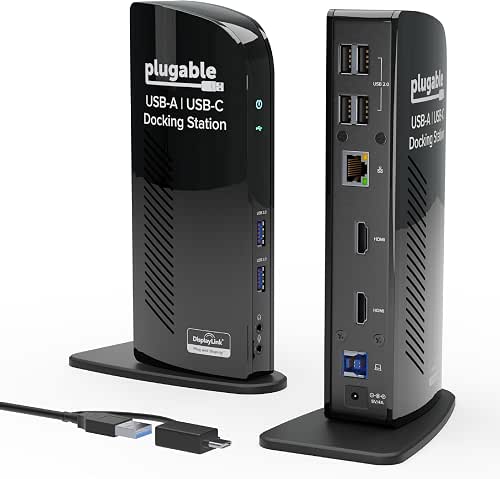
Plugable Universal Laptop Docking Station (UD-3900)
The Plugable Universal Laptop Docking Station UD-3900 is a solid pick provided you need a simple dual-monitor setup for web and productivity work, especially on Windows, macOS, or ChromeOS. You get two HDMI outputs, Gigabit Ethernet, audio jacks, and six USB ports through one hybrid USB 3.0/USB-C connection. It supports dual 1920×1200 displays at 60Hz, but it doesn’t handle 4K or gaming well. It also won’t charge your laptop. Should you want dependable expansion, plug-and-play ease, and lifetime support, this dock makes sense.
- Display Outputs:2x HDMI
- USB Ports:2x USB 3.0, 4x USB 2.0
- Ethernet:Gigabit Ethernet
- Power Delivery:No charging
- Audio:Headphone and microphone jacks
- Card Readers:Not included
- Additional Feature:TAA-compliant build
- Additional Feature:Windows plug-and-play
- Additional Feature:Lifetime support
QUUGE USB-C Laptop Docking Station with Dual HDMI
QUUGE’s USB-C Laptop Docking Station with Dual HDMI is a smart pick should you want a space-saving desk setup with real multitasking muscle: its 2-in-1 dock-and-stand design lets you prop up your laptop vertically or horizontally while driving two 4K monitors at 60Hz, or a single display at up to 4K@120Hz through HDMI 2.1. You also get USB 3.0, Gigabit Ethernet, and 85W charging from a 100W adapter. The metal build feels sturdy, while silicone pads help protect your device. It works with many USB-C laptops and tablets.
- Display Outputs:2x HDMI
- USB Ports:2x USB 3.0 Type-A
- Ethernet:RJ45 Gigabit Ethernet
- Power Delivery:Up to 85W
- Audio:Not specified
- Card Readers:Not included
- Additional Feature:Laptop stand design
- Additional Feature:4K@120Hz output
- Additional Feature:Vertical placement option
Anker 13-in-1 USB-C Laptop Docking Station
Anker’s PowerExpand 13-in-1 USB-C Laptop Docking Station is a strong pick should you want one hub that can run a full desktop setup from a single USB-C connection. You get 13 ports, including DisplayPort, dual HDMI, Ethernet, SD and microSD slots, audio, and four USB ports. It supports Windows 10/11, ChromeOS, and USB-C, USB4, and Thunderbolt laptops with DP Alt Mode. You can charge your laptop at up to 85W while topping up another device at 18W. On macOS and iPadOS, external displays mirror, and Linux isn’t supported.
- Display Outputs:2x HDMI, DisplayPort
- USB Ports:USB-C data port, 5Gbps USB-A ports
- Ethernet:Ethernet port
- Power Delivery:85W laptop, 18W device
- Audio:3.5 mm AUX
- Card Readers:SD, microSD
- Additional Feature:10Gbps USB-C port
- Additional Feature:135W power adapter
- Additional Feature:Dual charging USB-C
HP USB-C G5 Docking Station Bundle with Adapter
HP USB-C G5 Docking Station Bundle with Adapter is a smart pick should you want a compact, single-cable dock that can drive up to three displays from a USB-C or Thunderbolt laptop. You get two DisplayPort outputs, one HDMI port, Gigabit Ethernet, audio, and multiple USB 3.0 connections. The bundle includes a 120W adapter, HDMI, DisplayPort, USB-C cable, and microfiber cloth. Its 4.8-inch footprint keeps your desk clear, and it weighs just 23.98 ounces. Check your laptop’s compatibility initially, since some systems might require firmware updates. It works with HP and non-HP models.
- Display Outputs:2x DisplayPort, 1x HDMI
- USB Ports:1x powered USB 3.0, 1x SuperSpeed USB 3.0
- Ethernet:Gigabit Ethernet
- Power Delivery:USB-C power port
- Audio:Audio port
- Card Readers:Not included
- Additional Feature:Bundle accessories included
- Additional Feature:Compact square design
- Additional Feature:Advanced network management
Factors to Consider When Choosing Laptop Docking Stations
As you’re choosing a laptop docking station, start with checking your display resolution needs, port selection, and power delivery. You’ll also want to make sure it’s compatible with your device and supports the data transfer speed you need. The right dock should match how you work now and still leave room for future setup upgrades.
Display Resolution Needs
What resolution and refresh rate do you actually need from your dock? Start out matching the dock’s output to your work: 4K@60Hz suits sharp editing and clean text, while 1080p@60Hz handles everyday office tasks. Should you use more than one display, check the dock’s multi-monitor ceiling, because dual 4K@60Hz isn’t always possible; some models drop to dual 4K@30Hz or a 4K plus 1080p mix. Also confirm whether it relies on MST, SST, or DisplayLink, since each affects how screens mirror or extend. Don’t forget your laptop’s own USB-C or Thunderbolt limits, which can cap performance. Were you to want 120Hz, expect tighter bandwidth and fewer supported multi-display setups, especially on macOS or mobile devices that could mirror outputs.
Port Selection
Next, match the dock’s ports to the gear you actually use: make sure it offers the video outputs you need, like HDMI, DisplayPort, or USB-C Alt Mode, and that each one supports the resolution and refresh rate you expect, such as 4K@60Hz or 1080p@60Hz. Then count your USB ports and check their standards, because USB-C, USB-A, and faster USB 3.0/3.1/3.2 connections handle drives and peripherals far better than USB 2.0. In case you rely on Ethernet, confirm a Gigabit port and any MAC pass-through tools you need. Also look for SD or microSD readers, audio jacks, and dedicated low-latency USB 2.0 ports for mice, keyboards, or other input devices. The right mix keeps every accessory working smoothly without clutter.
Power Delivery
Power delivery is where a dock either keeps your laptop topped off or slowly lets it drain under load, so check the dock’s USB-C Power Delivery rating against your charger’s needs initially. Most ultrabooks want about 45W, while performance laptops often need 85–100W. Don’t assume the printed wattage reaches your laptop unchanged; the dock uses a few watts itself, so a 100W dock could only deliver about 85–92W. Should you run video editing or gaming, choose extra headroom so you don’t trigger throttling or battery drain. Also confirm the dock can pass power through the same port you use for video and data, and observe how much wattage remains when other displays or peripherals are active. Your laptop must also support USB-C PD charging and negotiation.
Device Compatibility
Compatibility is the gatekeeper whenever you choose a laptop dock: make sure its upstream connection—USB‑C, Thunderbolt, or USB‑A—matches your laptop’s port and supports the right video path, whether that’s DisplayPort Alt Mode or DisplayLink. Then confirm your laptop and dock agree on power delivery in case you want charging, and compare the dock’s wattage with what your machine can accept. You should also check your operating system and drivers, especially provided that the dock needs DisplayLink software for multi-monitor support. Don’t forget your graphics hardware and USB controller: they need to handle the number and resolution of displays you desire. Finally, verify Ethernet, USB, card reader, and audio standards so your peripherals work properly without surprises or reduced functionality.
Data Transfer Speed
At times speed matters, focus on the dock’s ports and uplink: USB 3.2 Gen 1 or Gen 2 gives you fast file transfers for external drives and backups, while card readers often top out around 100 MB/s even though the host port is faster. Should you move lots of photos or video, check SD and microSD reader ratings before you buy. For wired networking, Gigabit Ethernet usually beats Wi‑Fi for steady throughput. Also bear in mind that docks and hubs share some bandwidth and power internally, so attached devices won’t always get the full spec. In case you run displays, storage, and audio gear at once, choose a dock with the right upstream connection; Thunderbolt 3 or 4 delivers far more aggregate bandwidth than USB‑C DP Alt Mode.
Build And Form Factor
When you select a docking station, size and shape matter as much as ports. You’ll want a compact hub in case you travel often, but a larger dock can give you more connections and a steadier base on your desk. Check whether a vertical stand or low-profile layout fits your workspace and keeps your laptop positioned well for airflow. Opt for metal or reinforced plastic should you desire better durability, and look for vents in case you plan long sessions. Also review the cable setup: make sure the length, connector type, and attached or detachable design suit your routing and replacement needs. Finally, inspect port spacing so bulky plugs don’t crowd adjacent ports or make your peripherals awkward to use.
Frequently Asked Questions
Can Docking Stations Charge Laptops While Using Multiple Displays?
Yes, you can, if the dock supports Power Delivery. It can run multiple displays and charge your laptop at the same time, though the available wattage may affect performance.
Do Docking Stations Work With Both Windows and Mac Laptops?
Yes, many docking stations work with both Windows and Mac laptops, but it is best to verify compatibility first because some models offer fewer displays, ports, or charging features on Mac.
Can I Use a Docking Station With a Closed Laptop Lid?
Yes, you can use a docking station with your laptop closed if it supports clamshell mode. You will need external power, a connected monitor, and in some cases an external keyboard or mouse to wake and control it.
How Do I Know if My Laptop Supports Displayport Alt Mode?
Your laptop supports DisplayPort Alt Mode if its USB C port specifications list video output, DisplayPort, or Thunderbolt. Check the manual, the manufacturer’s website, or connect a compatible monitor to that port.
Will a Docking Station Improve Wi-Fi or Internet Speed?
No, a docking station will not directly increase your Wi-Fi or internet speed. You may only get faster browsing if it includes Ethernet and your current network gear, router, and internet plan are already limiting performance.
Conclusion
Choosing the right laptop docking station can instantly make your desk more powerful and flexible. With support for dual 4K displays, fast charging, and extra ports, you can turn one laptop into a full workstation. In fact, remote work remains common, with about 1 in 4 paid workdays still done from home in recent surveys. So, should you want better focus and less clutter, pick the dock that matches your setup and workflow.
