

When you’re juggling VHS tapes, HDMI gear, and older TVs, the right video converter can save you a lot of time and frustration. You want clean transfers, dependable scaling, and formats that actually work on your devices. The six options below cover everything from simple USB capture to software-based conversion, but each one handles the job a little differently. Which one fits your setup best may surprise you.
| ClearClick Video to Digital Converter 2.0 (Second Generation) |
| Best for VHS | Conversion Direction: Analog to digital | Supported Sources: VHS/VCR/camcorder | Output Format: MP4 | VIEW LATEST PRICE | Read Our Analysis |
| Video Converter Software for Windows 11/10/8/7 |

| Best Software | Conversion Direction: Video/audio to file conversion | Supported Sources: PC media files | Output Format: 130+ formats | VIEW LATEST PRICE | Read Our Analysis |
| USB Video Capture Card for VHS to Digital |
| Easy Capture Pick | Conversion Direction: Analog to digital | Supported Sources: VHS/Hi8/Mini DV | Output Format: 720p USB | VIEW LATEST PRICE | Read Our Analysis |
| Black Box HDMI to Analog Video Converter and Scaler |

| Best HDMI Scaler | Conversion Direction: HDMI to analog | Supported Sources: HDMI devices | Output Format: Analog video | VIEW LATEST PRICE | Read Our Analysis |
| HDMI to S-Video RCA Converter for Older TVs |

| Best for Old TVs | Conversion Direction: HDMI to analog | Supported Sources: HDMI devices | Output Format: S-Video/RCA | VIEW LATEST PRICE | Read Our Analysis |
| HD Video Converter for DVD/VCD and Game Consoles |

| Best for Consoles | Conversion Direction: AV to HDMI | Supported Sources: DVD/VCD/game consoles | Output Format: HDMI | VIEW LATEST PRICE | Read Our Analysis |
More Details on Our Top Picks
ClearClick Video to Digital Converter 2.0 (Second Generation)
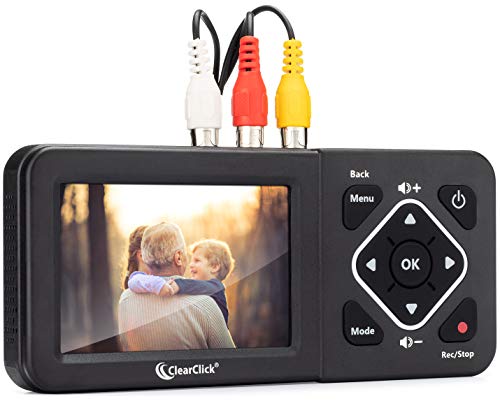
The ClearClick Video to Digital Converter 2.0 is a strong pick if you want an easy way to turn old VHS tapes, camcorder footage, or retro game output into mobile-friendly MP4 files. You can record straight to a USB flash drive or SD card, and the 3.5-inch preview screen helps you monitor everything. It supports composite and S-Video inputs, so you’ll connect it to working analog gear, not HDMI devices. It won’t upscale video, but its pause/resume tools, auto-stop settings, and audio sync protection make capture simpler. You also get a 1-year warranty and U.S. tech support.
- Conversion Direction:Analog to digital
- Supported Sources:VHS/VCR/camcorder
- Output Format:MP4
- Resolution:480p
- Connectivity:RCA/S-Video
- Power:Adapter powered
- Additional Feature:3.5-inch preview screen
- Additional Feature:Pause/resume recording
- Additional Feature:Auto-stop timer options
Video Converter Software for Windows 11/10/8/7
If you’re looking for a dependable video converter for Windows 11, 10, 8.1, or 7, this option stands out with broad format support, fast no-loss conversion, and compatibility with over 40 device presets. You can convert more than 130 video and audio formats, including HD, 4K, and 3D files, without sacrificing quality. It also gives you practical editing tools for trimming, cropping, merging, adding effects, and enhancing clips. With quick, easy conversion and support for smartphones, smart TVs, and other devices, you’ll handle playback needs across almost any setup with confidence.
- Conversion Direction:Video/audio to file conversion
- Supported Sources:PC media files
- Output Format:130+ formats
- Resolution:HD/4K
- Connectivity:Software-based
- Power:Not specified
- Additional Feature:40+ device presets
- Additional Feature:130+ file formats
- Additional Feature:Editing and enhancement tools
USB Video Capture Card for VHS to Digital
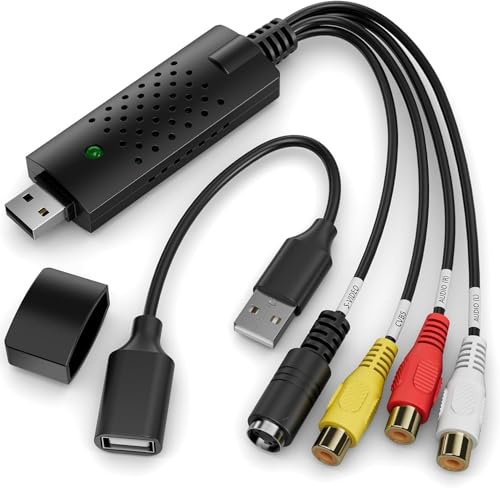
For anyone digitizing old VHS, Hi8, Mini DV, or camcorder tapes, the VIXLW USB Video Capture Card makes a practical pick because it pulls analog RCA or S-Video footage straight into your PC or Mac and outputs up to 720p. You get audio capture too, so you won’t need a separate sound card. Plug it in, and the driver installs automatically with no external power. On Windows, use OBS Studio or PotPlayer; on Mac, QuickTime works well. It supports NTSC and PAL, and lets you adjust brightness, contrast, hue, and saturation for cleaner transfers.
- Conversion Direction:Analog to digital
- Supported Sources:VHS/Hi8/Mini DV
- Output Format:720p USB
- Resolution:720p
- Connectivity:RCA/S-Video to USB
- Power:No external power
- Additional Feature:Automatic driver installation
- Additional Feature:Brightness and hue controls
- Additional Feature:NTSC/PAL support
Black Box HDMI to Analog Video Converter and Scaler
Black Box’s HDMI to Analog Video Converter and Scaler is a smart pick when you need to bridge modern HDMI sources to analog displays without extra hassle. You can connect a DVD player or other HDMI device, then let the AVSC-HDMI-VIDEO handle conversion, scaling, and setup. It gives you stereo analog and digital audio options, plus embedded HDMI audio output, so you’re not stuck juggling separate gear. You can also fine-tune hue, saturation, sharpness, and brightness, while EDID management and locking connectors help keep things stable. It’s plug-and-play, compact, and ready to use out of the box.
- Conversion Direction:HDMI to analog
- Supported Sources:HDMI devices
- Output Format:Analog video
- Resolution:Scaled output
- Connectivity:HDMI
- Power:No plug
- Additional Feature:Built-in scaler
- Additional Feature:EDID management system
- Additional Feature:Locking connectors
HDMI to S-Video RCA Converter for Older TVs
Need to connect a modern HDMI device to an older TV, projector, or monitor with S-Video or RCA inputs? You can use the HDMI to S Video RCA Converter, which turns HDMI into analog S-Video or composite video with R/L stereo audio. It works with DVD players, PS3, PS4, PCs, Fire TV Stick, laptops, Blu-ray players, and set-top boxes. It supports 480i, 480p, 576i, 576p, 720p, 1080i, and 1080p, but not 4K. Set 4K sources to 1080p or below. It’s plug-and-play, uses USB power, and only converts one way.
- Conversion Direction:HDMI to analog
- Supported Sources:HDMI devices
- Output Format:S-Video/RCA
- Resolution:1080p max
- Connectivity:HDMI to RCA/S-Video
- Power:USB 5V
- Additional Feature:Dual output options
- Additional Feature:1080p input support
- Additional Feature:One-way conversion only
HD Video Converter for DVD/VCD and Game Consoles
Sanpyl’s HD Video Converter is a solid pick if you want to bring DVD/VCD players, set-top boxes, or game consoles onto a modern HDMI TV without replacing your old gear. It accepts composite AV input and sends out HDMI, so you can keep using legacy devices on a big screen. You can switch between 720P and 1080P to match your display, and the USB power input helps when a screen won’t sync. At just 2.4 ounces, it’s tiny, black, and easy to tuck behind your setup.
- Conversion Direction:AV to HDMI
- Supported Sources:DVD/VCD/game consoles
- Output Format:HDMI
- Resolution:1080P
- Connectivity:AV to HDMI
- Power:USB powered
- Additional Feature:Manual standard switching
- Additional Feature:USB power backup
- Additional Feature:Big-screen viewing support
Factors to Consider When Choosing Video Converters
When you choose a video converter, start by checking your source and input types so the tool can handle your files. You should also match the output resolution, format and file support, and device compatibility to your needs. Finally, pick one that’s easy to set up so you can convert quickly without hassle.
Source And Input Types
Before you choose a video converter, match it to your source and input type so you don’t end up with a device that can’t read your signal. Check the connector first: HDMI, composite RCA, S-Video, component YPbPr, or RF/coax all need different hardware support. Then confirm whether your source is analog or digital, because many converters only work one way and won’t bridge analog to digital without the right circuitry. You should also verify the video standard your source uses, such as NTSC or PAL, plus interlaced or progressive signals like 480i, 720p, or 1080i. If your device sends HDMI, make sure the converter handles embedded audio; if it’s analog, look for separate L/R audio inputs. For VCRs and camcorders, confirm real-time SD capture support.
Output Resolution Needs
To get the best results from a video converter, match its output resolution to the highest resolution your display or playback device can actually use. Check whether your screen tops out at 480i, 480p, 720p, 1080p, or 4K, then choose a converter that can reach that level or higher. If you’re digitizing VHS, composite, or S-Video, expect native SD detail around 640×480 or 720×480; upscaling can make it fit modern screens, but it won’t add real detail. For archiving or editing, pick the highest practical digital output your source supports, ideally lossless or high bitrate. Also look for good scaling tools, like deinterlacing and color correction, and match frame rates to your workflow to avoid judder, sync problems, or extra conversion steps.
Format And File Support
Make sure your video converter supports both the input connections and file types you actually use, so you’re not stuck with gear that can’t talk to your source or your software. Check that it handles composite/RCA, S-Video, HDMI, or USB capture, depending on what you’re converting. Then confirm it exports the formats and containers you need, like MP4, AVI, MOV, or MKV, with codecs such as H.264, H.265, or MPEG-2. You should also verify resolution handling, whether it keeps the original size or upscales and downscales as needed. Don’t ignore audio support for PCM or AAC, stereo or mono, and sync stability. Broad NTSC/PAL support and built-in presets can save time during post-processing, too.
Compatibility With Devices
Once you’ve confirmed the formats and file types a video converter can handle, the next step is checking whether it actually works with your devices. You should match the converter’s ports to your gear, whether you need HDMI, composite RCA, S-Video, or USB. Next, make sure it supports the video standards your source and display use, including NTSC or PAL and progressive or interlaced signals like 480i, 480p, 720p, or 1080p. If the converter needs drivers or capture software, verify it works with your operating system and app version. Also check resolution support and scaling, so you get the output quality you want. If you’re recording to USB or SD media, confirm the file format, storage limits, and filesystem compatibility too.
Ease Of Setup
Ease of setup can make the difference between a converter you start using right away and one that turns into a troubleshooting project. You’ll want to know whether it’s plug-and-play or needs driver and software installation, because extra installs can slow you down and trigger compatibility issues. Check the supported operating systems and required app versions before you buy, so you don’t get stuck with Windows, macOS, or capture-software mismatches. Confirm the connector types and cables you need, and see whether they’re included. Look for clear controls, a built-in preview, or an intuitive interface, since those features cut the learning curve. Also verify power needs: bus-powered models are simpler, while units that need a 5V adapter can’t run without it.
Frequently Asked Questions
Which Converter Works Best for Live Streaming Setups?
For live streaming choose a hardware converter with very low latency and dependable video passthrough to maintain a stable feed. Prefer models that offer HDMI and SDI ports and real-time scaling for the smoothest results.
Can Video Converters Improve Low-Quality Footage?
Yes. Converters can help by changing formats, improving scaling, and applying basic cleanup such as noise reduction and stabilization. They cannot invent missing detail; significant quality improvements require dedicated editing or restoration tools and sometimes manual correction.
Do Converters Support Audio Extraction Too?
Yes. Many converters can also extract audio, letting you get the soundtrack without extra steps. Output formats commonly include MP3, WAV, and AAC, depending on the converter and your needs.
How Do Converters Affect Video File Sizes?
Converters can make a video file smaller or larger depending on the chosen codec, output resolution, target bitrate, and quality level. Using a more efficient codec or lowering resolution and bitrate typically reduces file size, while selecting higher quality or a less efficient codec can keep the size similar or increase it.
Are Video Converters Useful for Gaming Capture?
Yes, video converters are handy for gaming capture. For example, I reduced a 20 GB boss fight into a shareable clip, optimized the format for social platforms, trimmed unnecessary footage, and ensured the file played smoothly across devices.
Final Thoughts
So, if you’re tired of wrestling with mismatched cables, old tapes, and confusing file formats, these converters can make the whole process a lot easier. You don’t need a full studio setup to preserve VHS, play legacy consoles, or move video into modern formats. Even if you think setup will be a hassle, most of these tools are plug-and-play and built to save you time, stress, and guesswork.
